> ## Documentation Index
> Fetch the complete documentation index at: https://www.towbar.dev/llms.txt
> Use this file to discover all available pages before exploring further.

# Vulnerability scanning

> Scan app images, inspect package findings and available fixes, and track results across your workspace.

Towbar scans the immutable image produced by an opted-in app deployment with Trivy. Results include severity totals, affected packages, installed and fixed versions, and scanner metadata. Scanning runs separately from deployment: findings or a scan failure do not block promotion or change the deployment’s health.

## Enable scanning

1. Enable `TOWBAR_VULNERABILITY_SCANNING_ENABLED=true` on your installation and recreate the API and worker. See [scanner configuration](/docs/reference/environment-variables#image-vulnerability-scanning).
2. Add `vulnerabilityScanning: true` to the app entity file under `.towbar/apps/` and sync the Repository.
3. Deploy the app. Towbar queues a scan after a successful production or preview deployment.

```yaml title=".towbar/apps/web.app.yml" theme={"system"}
id: web
vulnerabilityScanning: true
environments:
  production: {}
```

This is a manifest fragment. Scanning is an app feature; managed database and image resources are not scanned. Changing this policy alone does not redeploy an app. Disabling it stops new scans and retains existing results.

## Browse workspace findings

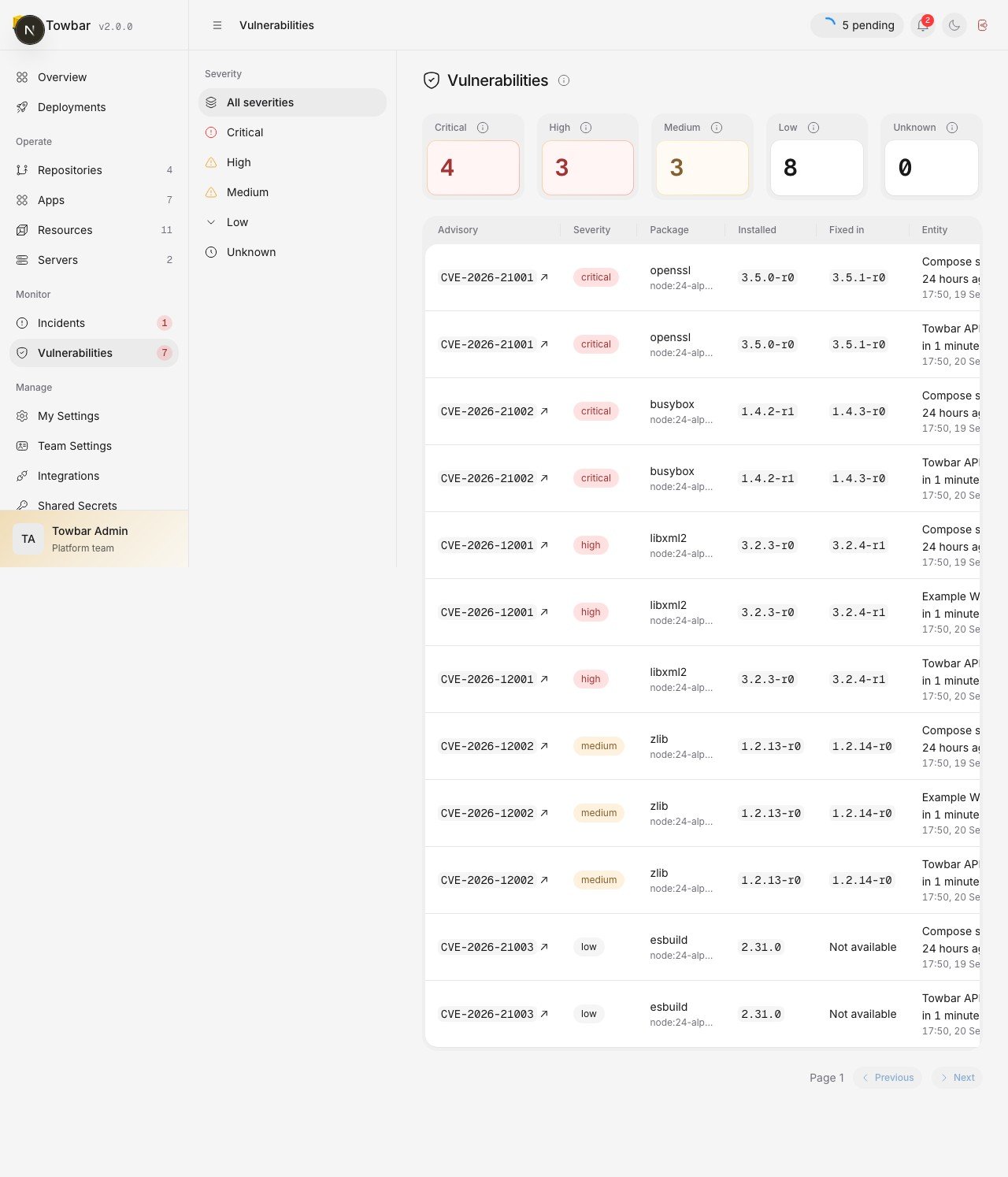
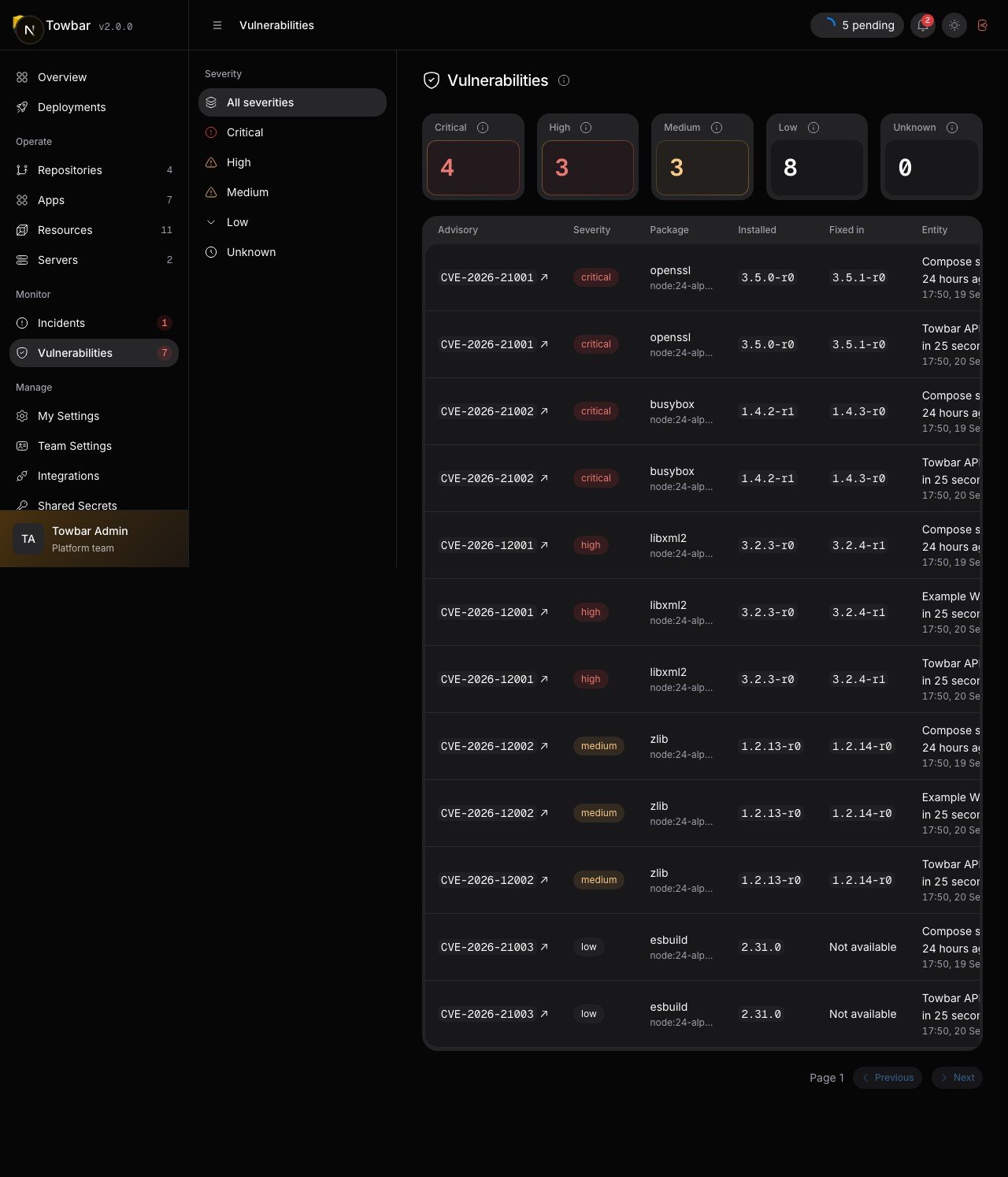
Open **Monitor → Vulnerabilities**. The secondary sidebar filters by severity, and the URL preserves that selection. On mobile, use **Page menu**. The table shows advisory IDs, packages, installed and fixed versions, affected apps, targets, and scan timestamps. Select the app link to open the deployment’s scan details. Select a CVE ID to open its record on CVE.org. Other supported advisory IDs link to their advisory source.

The workspace view uses the latest requested scan for each app, rather than combining every historical deployment. Its table contains stored findings from completed scans with findings. The severity totals summarize the full scan results, so they can exceed the number of rows: Towbar retains a bounded set of critical, high, or fixable findings. An empty filtered table alone does not establish that every image is clean; review the scan states and individual deployment details.

<div className="towbar-doc-screenshot">
  <div className="towbar-product-light">
    <img src="https://mintcdn.com/avgeek/-D5mUM-1hnhKZAmI/assets/release-v2/vulnerabilities-light.jpg?fit=max&auto=format&n=-D5mUM-1hnhKZAmI&q=85&s=bfc16b9b1c9a2c438decf689cacfbaaf" alt="Workspace findings link to CVE records and the affected deployment." width="1280" height="1494" loading="lazy" data-path="assets/release-v2/vulnerabilities-light.jpg" />
  </div>

  <div className="towbar-product-dark">
    <img src="https://mintcdn.com/avgeek/-D5mUM-1hnhKZAmI/assets/release-v2/vulnerabilities-dark.jpg?fit=max&auto=format&n=-D5mUM-1hnhKZAmI&q=85&s=0f01b9d7b9b2941e88a77a21314de283" alt="Workspace findings link to CVE records and the affected deployment." width="1280" height="1494" loading="lazy" data-path="assets/release-v2/vulnerabilities-dark.jpg" />
  </div>

  <p>Workspace findings link to CVE records and the affected deployment.</p>
</div>

## Inspect a deployment

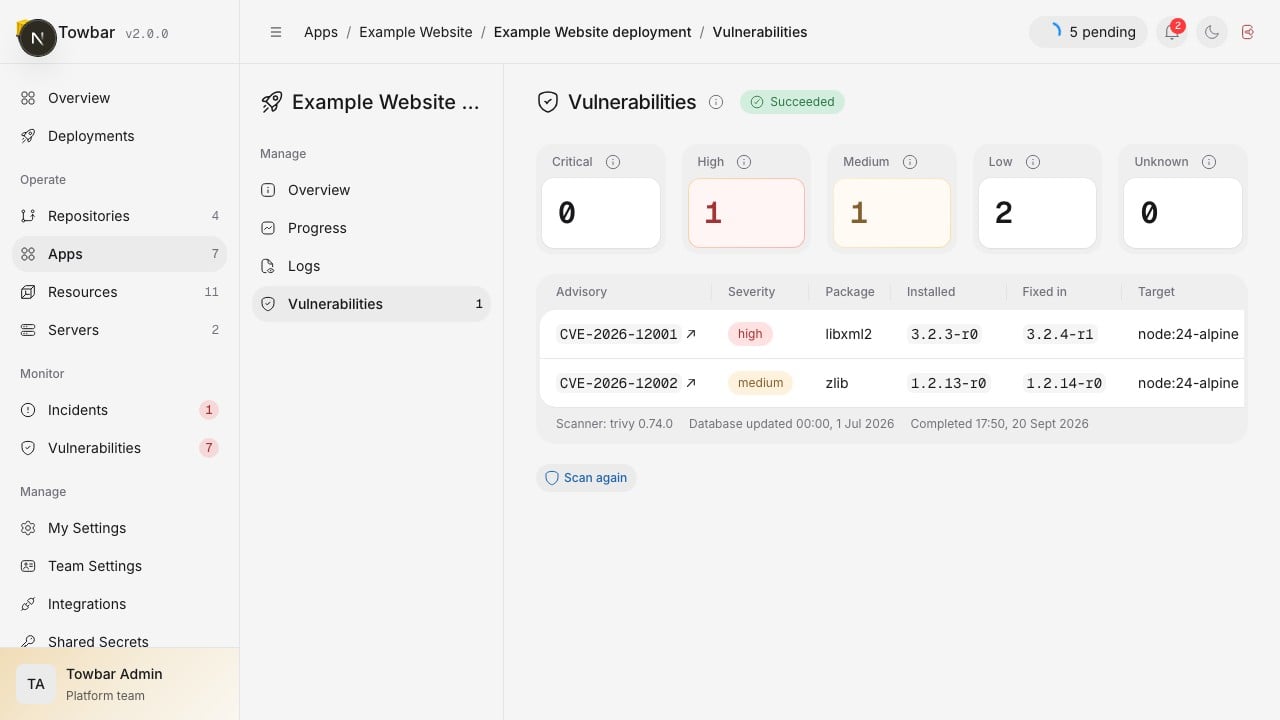
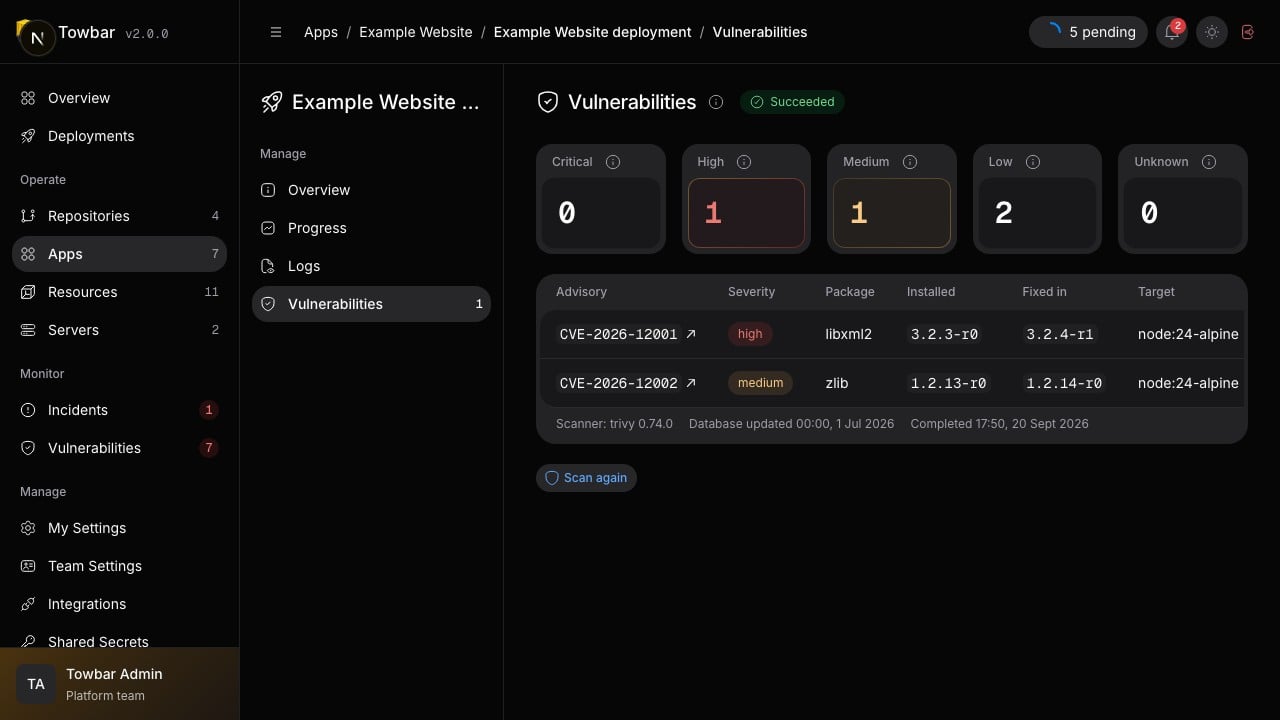
Open **Vulnerabilities** in a deployment’s secondary sidebar to see its scan state, severity totals, package findings, scanner version, and vulnerability database timestamp. Scan results are shared for the same immutable image digest within a workspace.

<div className="towbar-doc-screenshot">
  <div className="towbar-product-light">
    <img src="https://mintcdn.com/avgeek/7IKQY5hBmeQaVMw0/assets/release-v2/deployment-vulnerabilities-light.jpg?fit=max&auto=format&n=7IKQY5hBmeQaVMw0&q=85&s=a73cdcc1a5ec28bbb66eb9ab4a472985" alt="Deployment findings identify the package, installed version, and available fixed version." width="1280" height="720" loading="lazy" data-path="assets/release-v2/deployment-vulnerabilities-light.jpg" />
  </div>

  <div className="towbar-product-dark">
    <img src="https://mintcdn.com/avgeek/7IKQY5hBmeQaVMw0/assets/release-v2/deployment-vulnerabilities-dark.jpg?fit=max&auto=format&n=7IKQY5hBmeQaVMw0&q=85&s=07fda8eee06d06c0ae8d56aa1a5c26a4" alt="Deployment findings identify the package, installed version, and available fixed version." width="1280" height="720" loading="lazy" data-path="assets/release-v2/deployment-vulnerabilities-dark.jpg" />
  </div>

  <p>
    Deployment findings identify the package, installed version, and available
    fixed version.
  </p>
</div>

| State             | What it means                                                                          |
| ----------------- | -------------------------------------------------------------------------------------- |
| Not scanned       | No result has been recorded for this image.                                            |
| Pending / Running | A scan is queued or in progress.                                                       |
| Clean             | The scan reported no known vulnerabilities for this image digest.                      |
| Findings          | The scan reported vulnerabilities; inspect severity and package details.               |
| Stale             | The vulnerability database behind the result is older than the configured maximum age. |
| Failed            | Scanning did not complete; inspect the error and retry when the cause is resolved.     |

A clean result reflects the scanner’s database at the time of the scan. It is not a guarantee that the application has no security issues. Scanning does not inspect running host configuration or application behavior.

## Rescan and remediate

An Admin can choose **Scan again** on an eligible deployment and confirm the action. The app and installation must still have scanning enabled. A rescan refreshes the result for the same image; it does not rebuild or redeploy it. A running scan cannot be queued again.

Use **Fixed in** to identify a package version that addresses a finding. Update the dependency or base image in the repository, build and deploy a new image, then inspect that image’s result. When no fixed version is listed, review the advisory and upstream package guidance.

Completed results become stale based on the vulnerability database timestamp. The default maximum age is 168 hours, configurable with `TOWBAR_VULNERABILITY_SCAN_MAX_AGE_HOURS`.

## API and MCP

The API exposes [workspace findings](/api-reference/get_monitoring_vulnerabilities), [deployment findings](/api-reference/get_deployments_by_id_vulnerability_scan_findings), and [rescan requests](/api-reference/post_deployments_by_id_vulnerability_scan_actions_rescan). Read-only API keys can inspect results; rescanning requires an Edit key with administrative workload permissions. The [MCP tool reference](/docs/api/mcp-tools) documents the corresponding discovery and action tools.