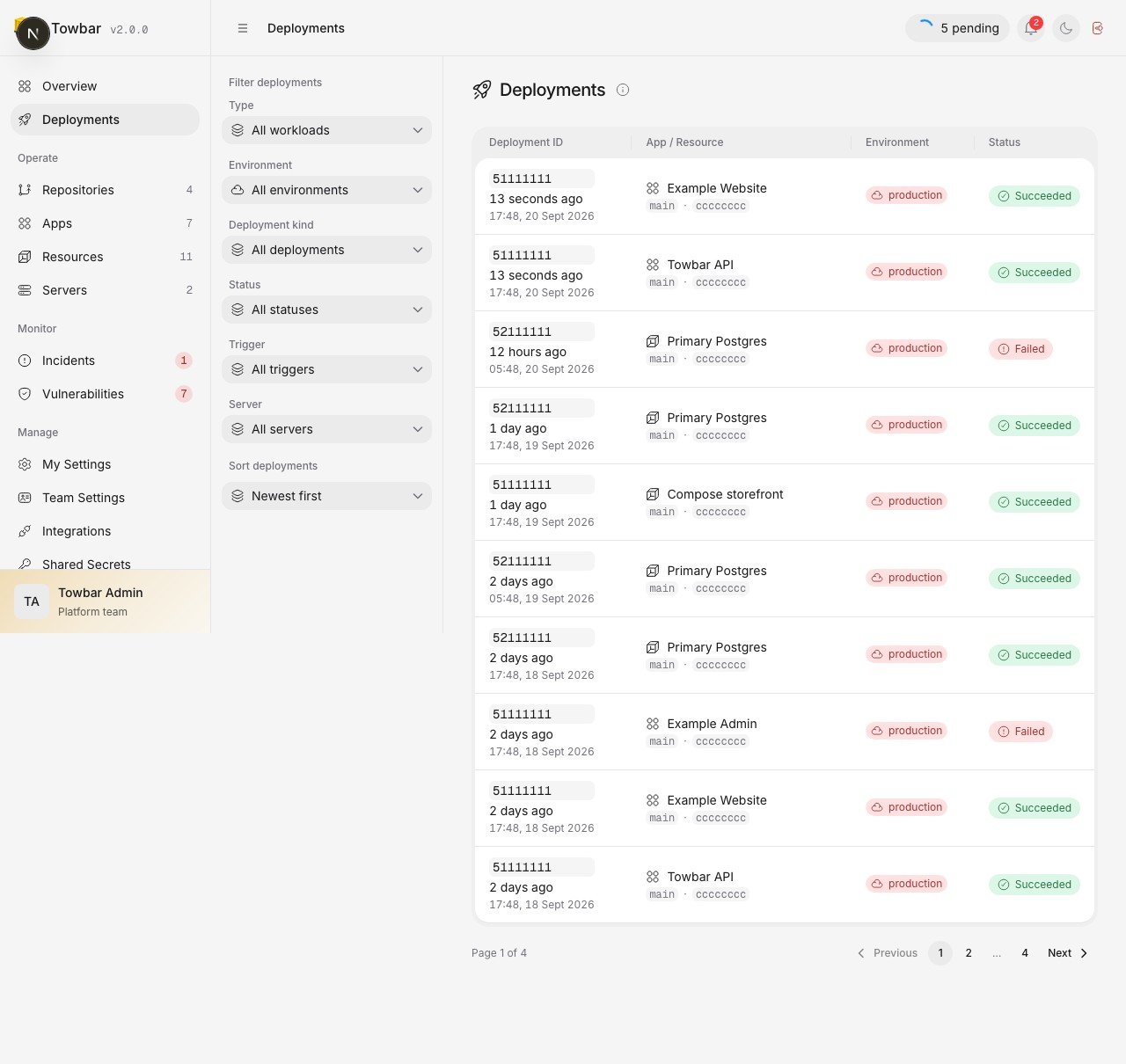
A deployment is one attempt to put an app or resource into service. Towbar records its trigger, immutable inputs, progress, duration, and final result separately from Repository sync history.
Filter deployment history by status, trigger, and workload.
Browse deployment history
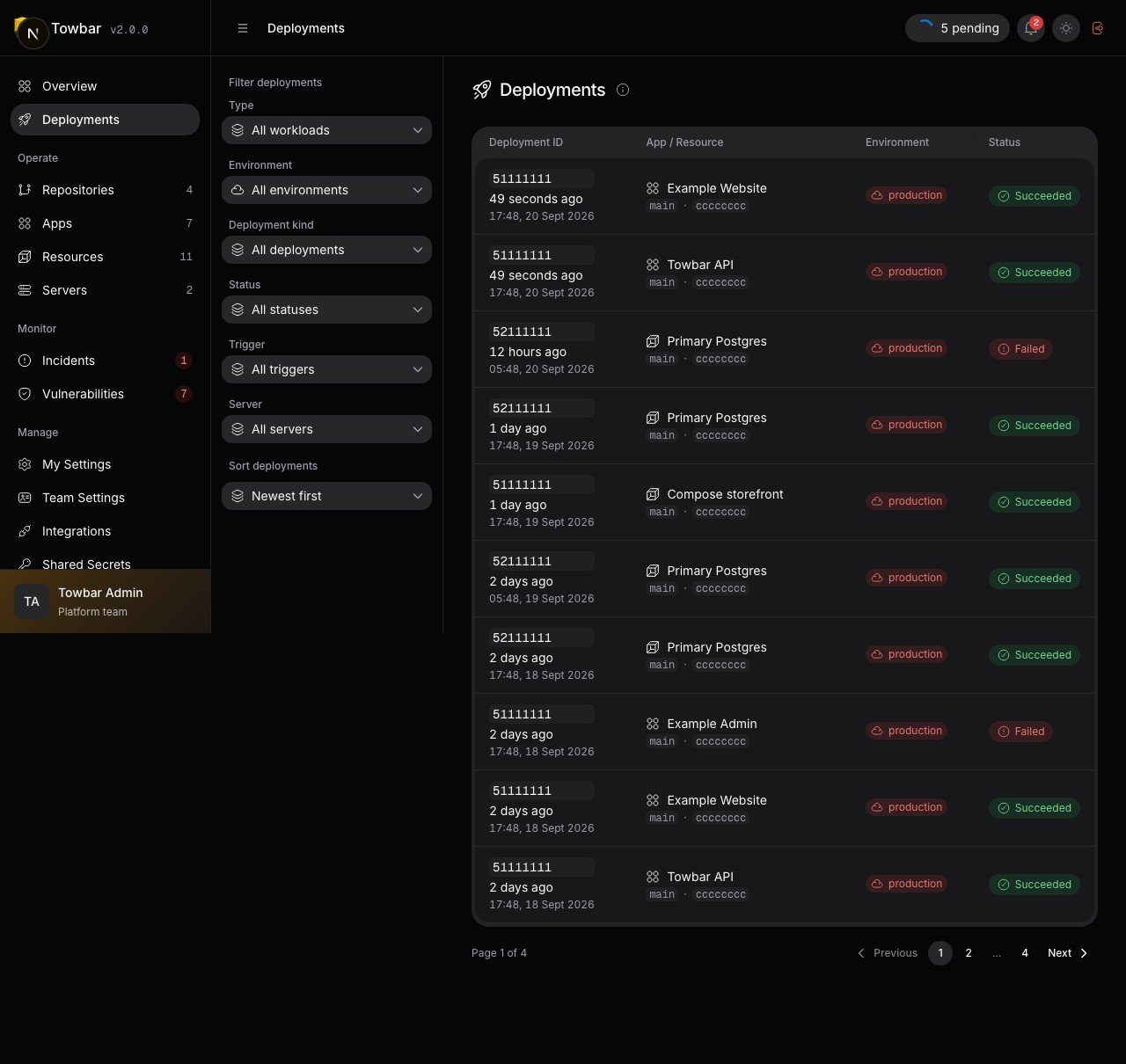
Use the Deployments page sidebar to filter by workload type, environment, status, trigger, or server. Sort by request time or workload name. Filters and sorting apply to the full history before pagination, and the URL preserves your selection.
On mobile, open Page menu to access the filters.
Deploy manually
Open an app or resource and choose Deploy. The server must be prepared and trusted, and required credentials must be configured. Follow the queued operation through its recorded stages; a queued request is not a completed deployment.
The details vary by workload and configured hooks. Use the operation’s actual stage output when diagnosing a failure.
Automatic deployments
Apps and resources are manual unless autoDeploy is enabled. autoDeploy: true treats commits as deployment inputs. Apps can narrow their inputs with repository globs:
This is a fragment, not a complete manifest. Towbar compares selected file identities and configuration to decide whether to queue work. An incomplete Git tree is treated as changed. Include every file that can affect the built app, including shared libraries and build configuration.
Use the Repository’s pause controls to stop automatic deployment during maintenance. Saving a secret does not enqueue a deployment; deploy explicitly when you want the new value to take effect.
Deployment hooks
App hooks run commands around deployment. Add hook configuration under the app:
A pre-deploy failure stops deployment before promotion. A post-deploy failure is reported as a warning after promotion. Hooks receive their own stage-specific secrets. Design commands so retries are safe and schema changes remain compatible with the previous release.
Read the final result
Durations advance while work is ongoing and stop at the final timestamp. The latest runtime health can still change after deployment succeeds.
Inspect image vulnerabilities
For opted-in apps, open Vulnerabilities in the deployment’s secondary sidebar to inspect the immutable image’s scan state, severity totals, and package findings. Monitor → Vulnerabilities collects findings across the workspace. A successful deployment can still have vulnerabilities; a scan failure does not change deployment health. See Vulnerability scanning for setup and result interpretation.
Roll back an image
Use a retained release when you need to return to a previous image. Rollback uses current runtime secrets, so it does not restore revoked credentials. It also does not undo database writes or schema migrations. Check compatibility before rolling back an app that ran a migration.
Database recovery is a separate restore operation. For build or startup failures, follow Troubleshooting.