Requirements
Use a dedicated Ubuntu 22.04 or 24.04 LTS host with root access or a user that has passwordlesssudo. The worker must be able to reach its SSH port. Restrict access at the network layer and keep the operating system maintained.
Preparation installs or validates Docker Engine 29 or newer with Buildx per-build resource controls, Caddy, python3, GNU timeout, and the required non-interactive permissions. It checks for at least 1 GiB of available storage under Docker’s data directory. Plan additional disk and memory for builds, retained images, and database volumes. Re-run preparation after upgrading Towbar so an older Docker installation is upgraded before the next deployment.
Register and trust the host
- Open Servers → Add server. Enter the canonical IP, SSH connection, and concurrency settings.
- Open Settings → Credentials and select a stored SSH key. Choose Add private key inside the dropdown to create one without leaving the server.
- Install the public key in the SSH user’s
~/.ssh/authorized_keys, then choose Save. Towbar checks the connection and discovers the server’s host key. - Compare its fingerprint with the server console or another independent, trusted channel before accepting it.
- Towbar attaches the selected private key only after SSH authentication succeeds. The Host verified badge appears in the credentials widget; hover or focus it to see when trust was recorded.
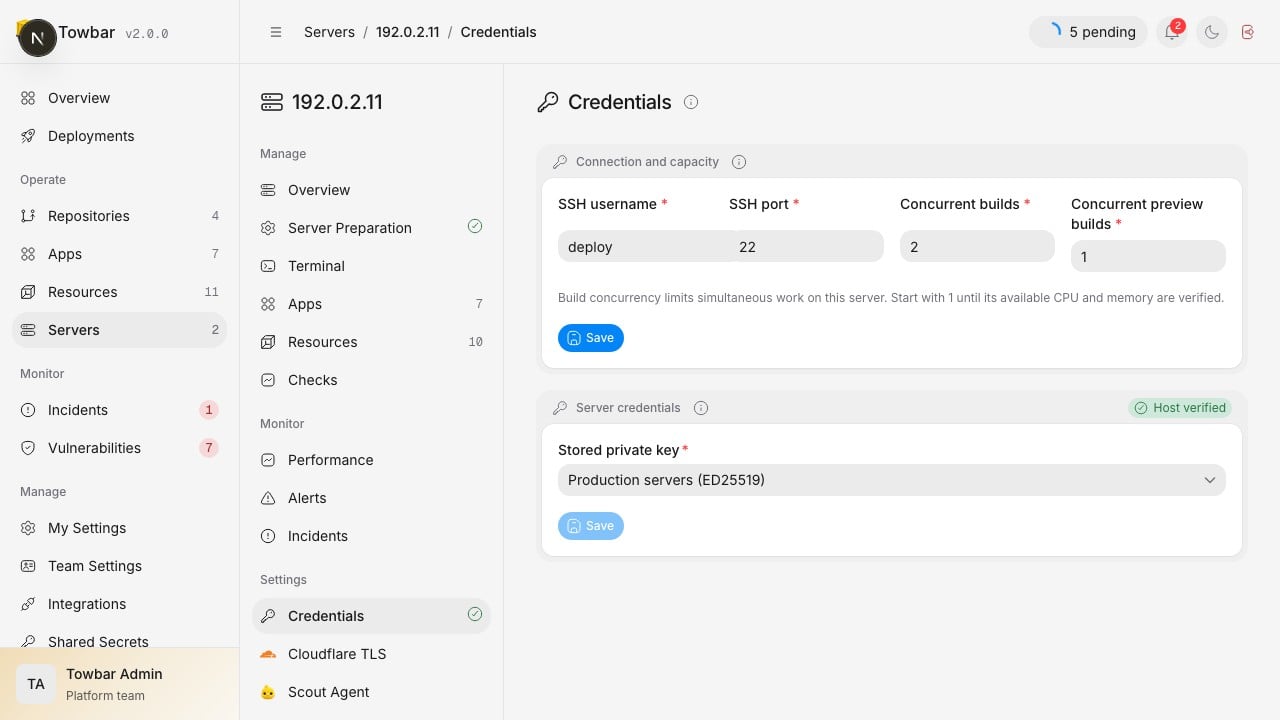
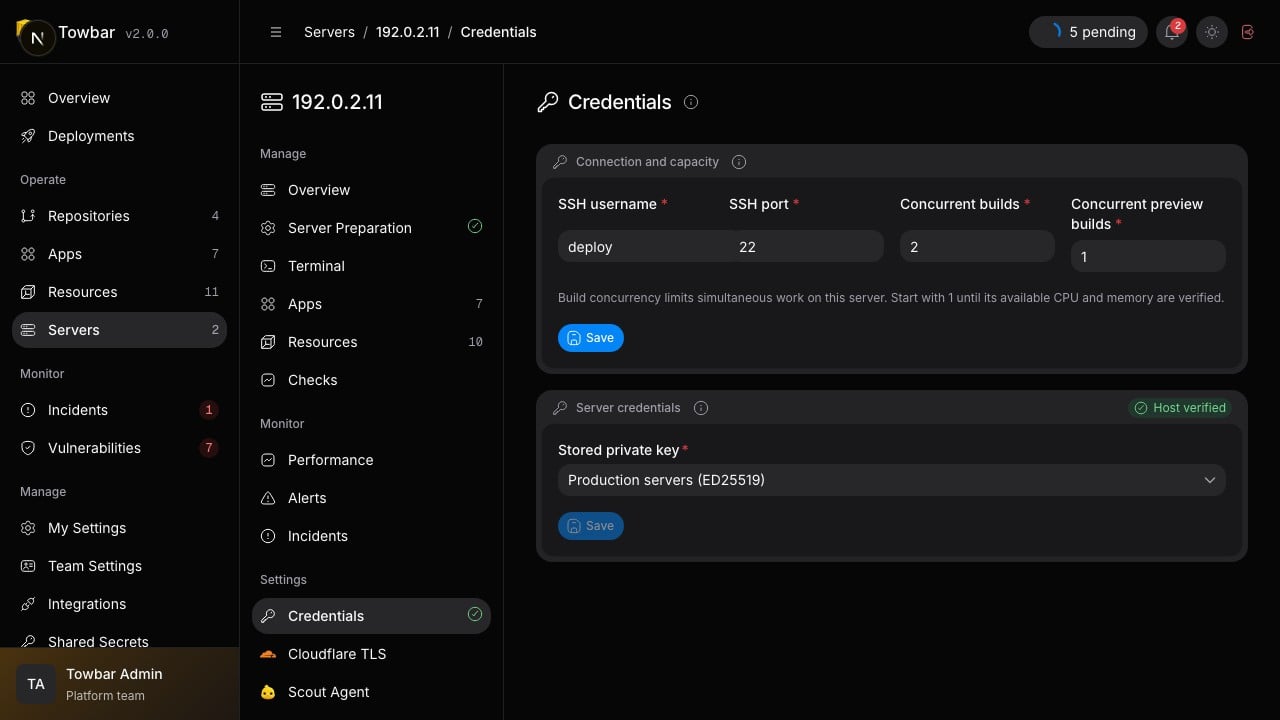
Select a stored SSH key under Credentials. Host verified records the server identity check.
Prepare the runtime
Choose Prepare server from the server’s Overview or Server Preparation page. The checklist groups connection and host checks under Server Inspection, followed by the installation and verification steps under Prerequisites. Progress updates automatically; expand a step to see the connection result, inspection findings, installed services, and captured terminal output. Terminal output is redacted and retained up to the most recent 32,768 characters per step. Workloads remain Server Setup Pending until preparation succeeds. Overview shows a preparation prompt before preparation starts or when a failed attempt needs a retry. The full checklist and recorded output remain available under Server Preparation, next to Overview in the server sidebar. A yellow warning marks a server that needs preparation; a spinner marks a queued or running preparation. If preparation fails, the failed step opens with its details so you can resolve the issue and retry. Towbar reuses compatible installations. It does not remove conflicting packages or overwrite an unmanaged Caddy binary. If a step fails, read its output and error before changing the host. Retry after resolving the conflict; use a fresh host when ownership of existing services is unclear. If the server presents a different host key, Towbar pauses the connection and asks you to verify the new fingerprint. A server rebuild can cause this, but so can an intercepted connection. Update trust only after confirming the new identity independently.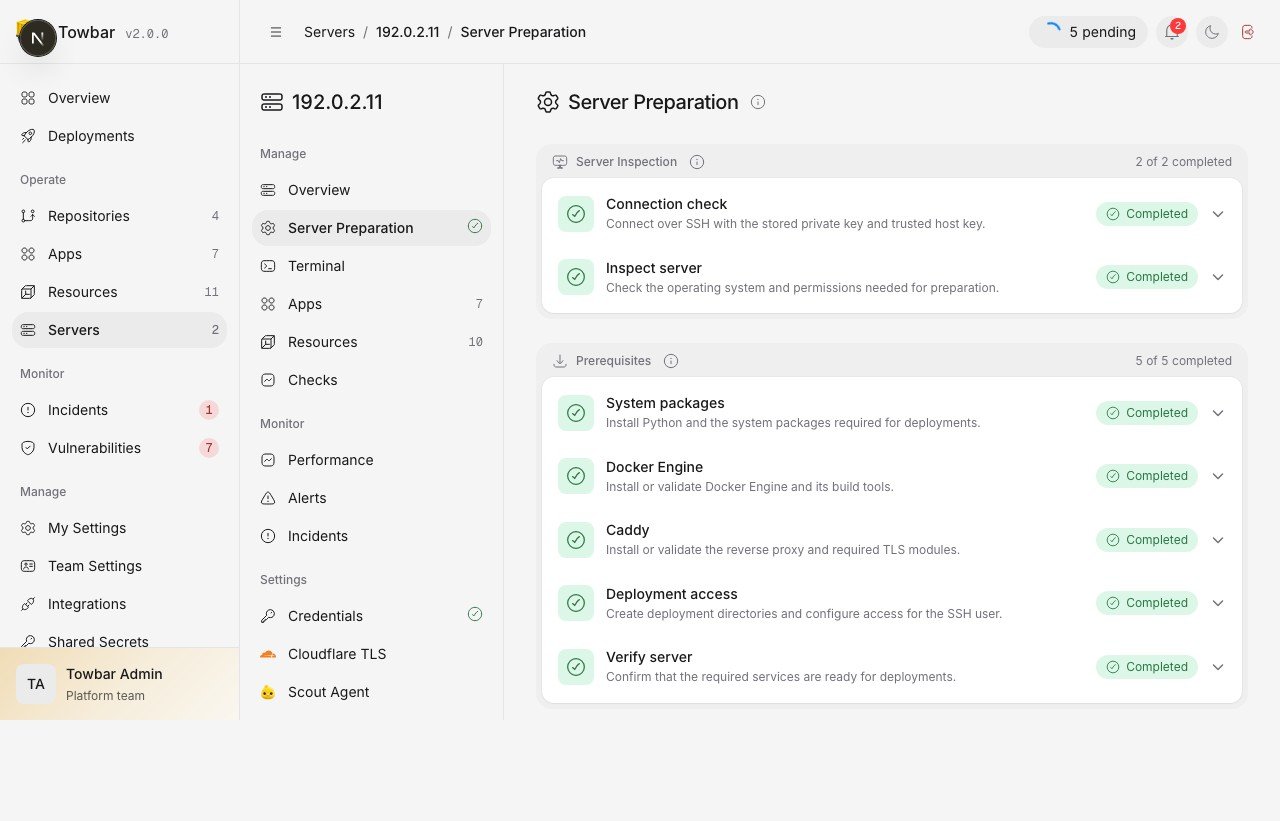
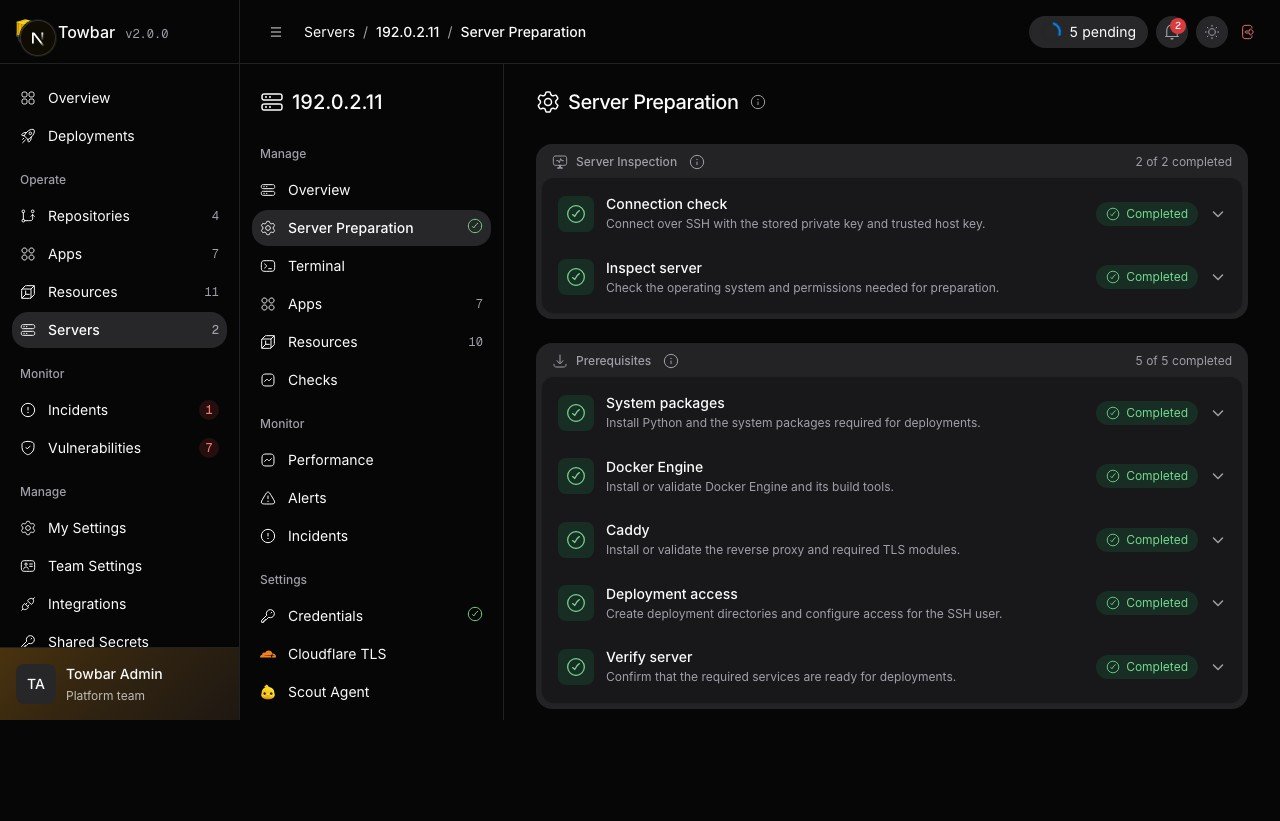
Server Preparation keeps the complete inspection and prerequisites checklist available after setup finishes.
Interactive terminal
Admins can open Terminal in a server’s sidebar and choose Connect. Towbar uses the SSH username, port, private key and trusted host keys configured under Credentials. The server does not need to be prepared first. If no verified key is connected, the page links to Credentials. The shell has the same permissions as that SSH user. Commands run directly on the host and can change running workloads outside the deployment scheduler. Use the terminal for inspection and deliberate maintenance; use deployments and resource operations when Towbar should track and coordinate the change. A recent sign-in is required. Terminal access is unavailable to Members, Viewers, personal API keys, team API keys and MCP. Connection tickets expire after 30 seconds, work once, and are bound to the issuing browser session. Private keys remain on the API. A changed or untrusted host identity prevents connection; resolve it through Credentials. Connections close when you disconnect, leave the page, lose the browser connection, reach one hour, or provide no input for 15 minutes. Towbar rechecks session, role, server configuration and credentials every five seconds and closes the shell when they change. Up to three sessions per user and 20 per API process are allowed. There is no automatic reconnect or command replay. Connection open/close events are audited. Towbar does not store terminal input or output; the remote shell may keep its own history. Terminal output is shown as received and is not subject to deployment-log secret redaction. Expose the app and API over HTTPS and allow WebSocket upgrades on/v1/terminal through your reverse proxy. The API process needs network access
to the target’s SSH port, in addition to the worker’s existing access. The
standard Compose installation has one API process. If you run multiple API
replicas, use connection affinity so the ticket request and WebSocket reach
the same process; restarting that process disconnects its shells.
The local fixture terminal is clearly marked and supports a few demonstration
commands. It does not connect to a target server.
Set concurrency
buildConcurrency limits build work on this host. previewBuildConcurrency reserves a bounded share for previews, defaults to 1, cannot exceed the total, and is capped at 4. Production and maintenance work take priority over previews.
Also account for the installation-wide worker activity limit. Increasing concurrency consumes real CPU, memory, and disk bandwidth on the target.
Read capacity and health
The Servers table shows hardware capacity. A server’s Apps and Resources sidebar items show configured allocations alongside the latest observed consumption. Known cloud instance types appear below the IP. When only the provider is known, its logo appears beside observed CPU and memory capacity. If metadata is unavailable, Towbar shows hardware capacity or Unknown Instance Type.Automatic cloud detection
Server checks read the provider’s local metadata service. No cloud account API key is required.
Hetzner and DigitalOcean do not expose an exact plan name through the metadata endpoints Towbar uses. Towbar does not guess one from CPU or RAM. Other providers and dedicated servers still show observed hardware capacity.
Detection is best effort: blocked, unsupported, or slow metadata does not fail a server check. Run Check server after upgrading to refresh the provider information.
Capacity comes from server checks. A displayed value is an observation, not a guarantee that the host is reachable at that instant. Check its timestamp and the latest check result during an incident.
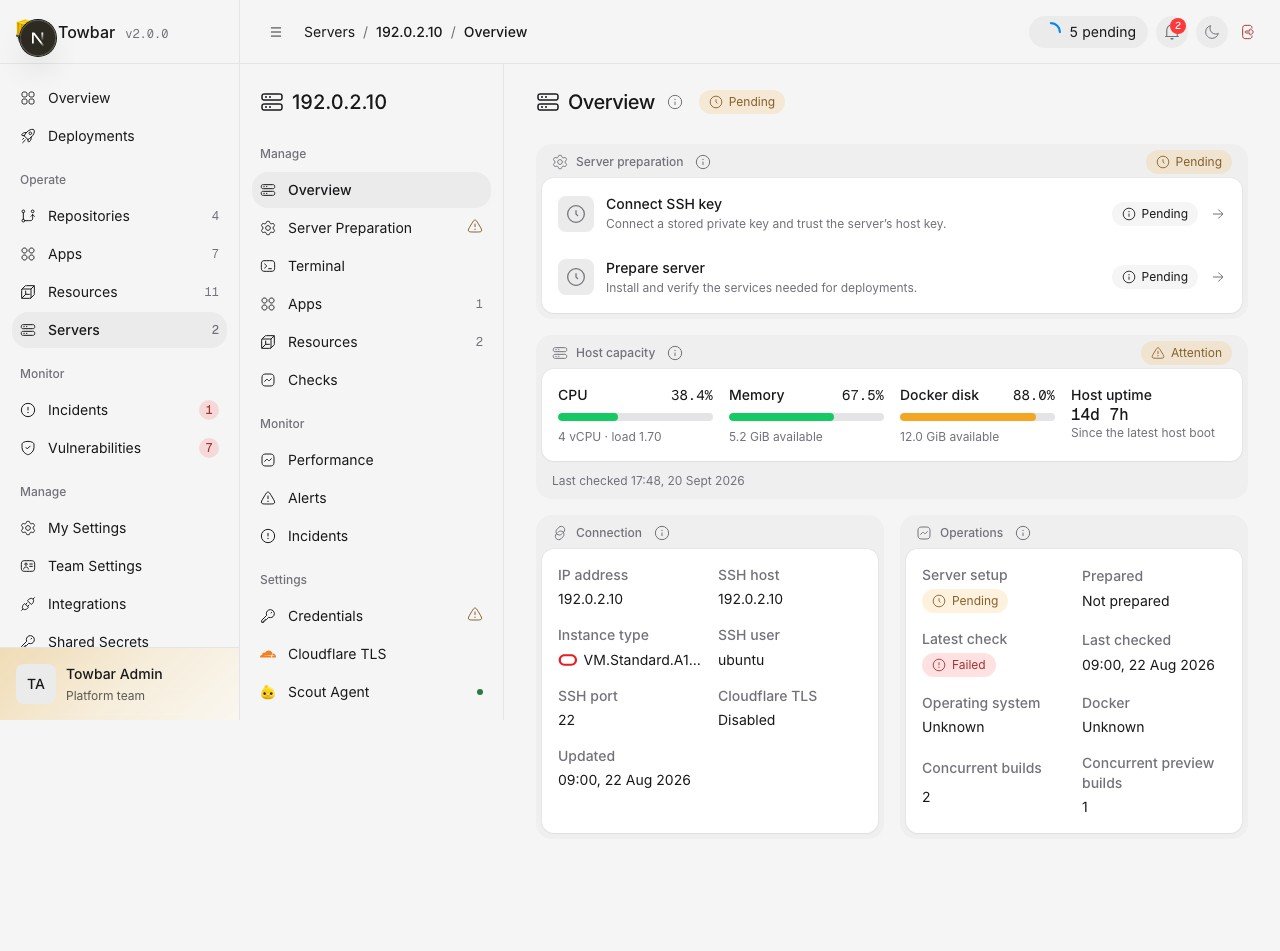
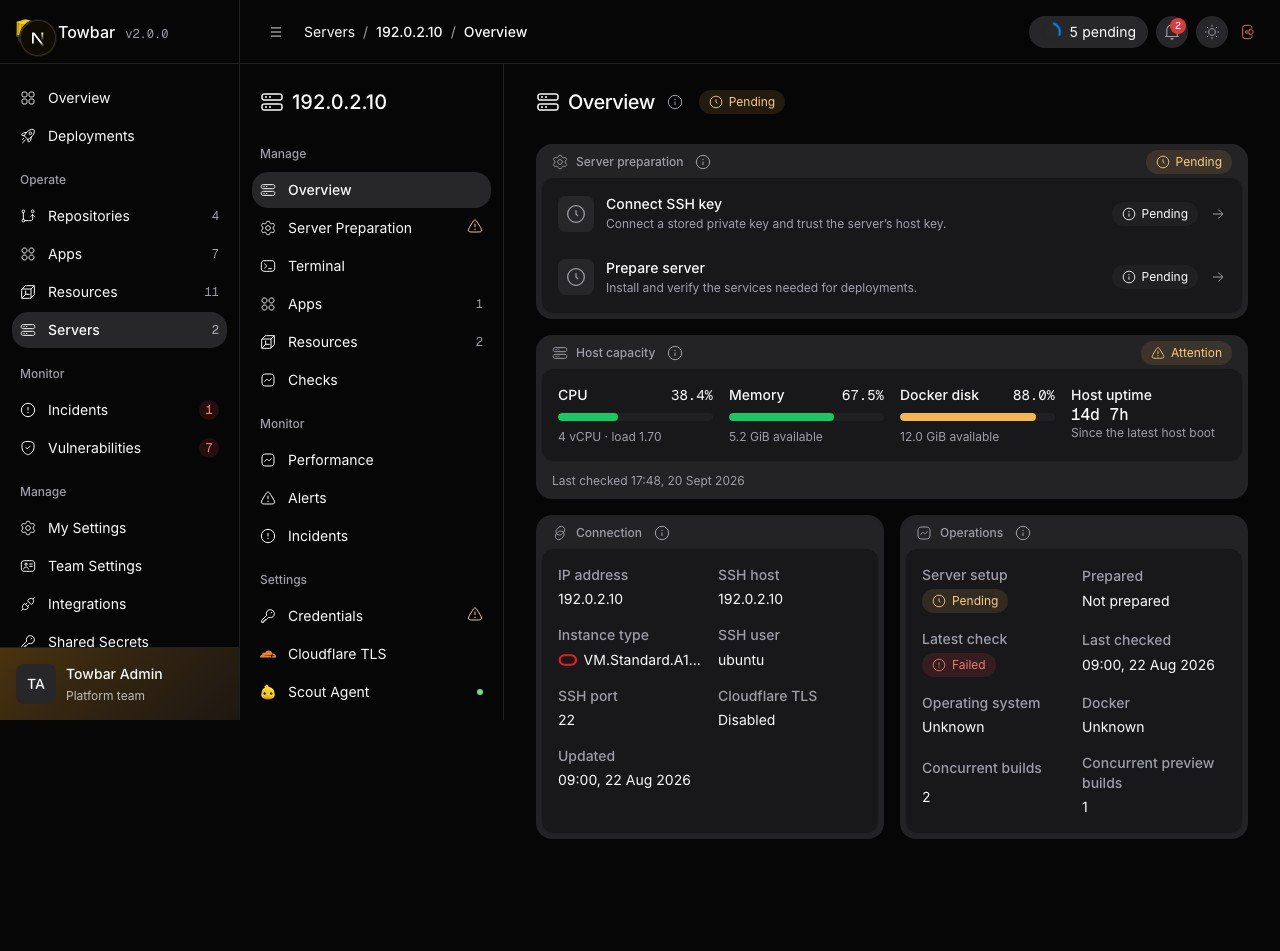
Host capacity, connection details, and recent operations appear on the server Overview.