towbar.yml declares environments, and files under .towbar/apps and .towbar/resources define workloads. Each connected environment follows a branch selected in Towbar.
Add a Repository
- Connect the GitHub App and grant access to the repository.
- Register each target IP address under Servers.
- Commit a valid manifest to the repository.
- Open Repositories → Add repository, select the repository, then choose or add environments and map their deployment branches.
- Open the sync result and confirm it succeeded. The imported apps and resources should now appear under the Repository.
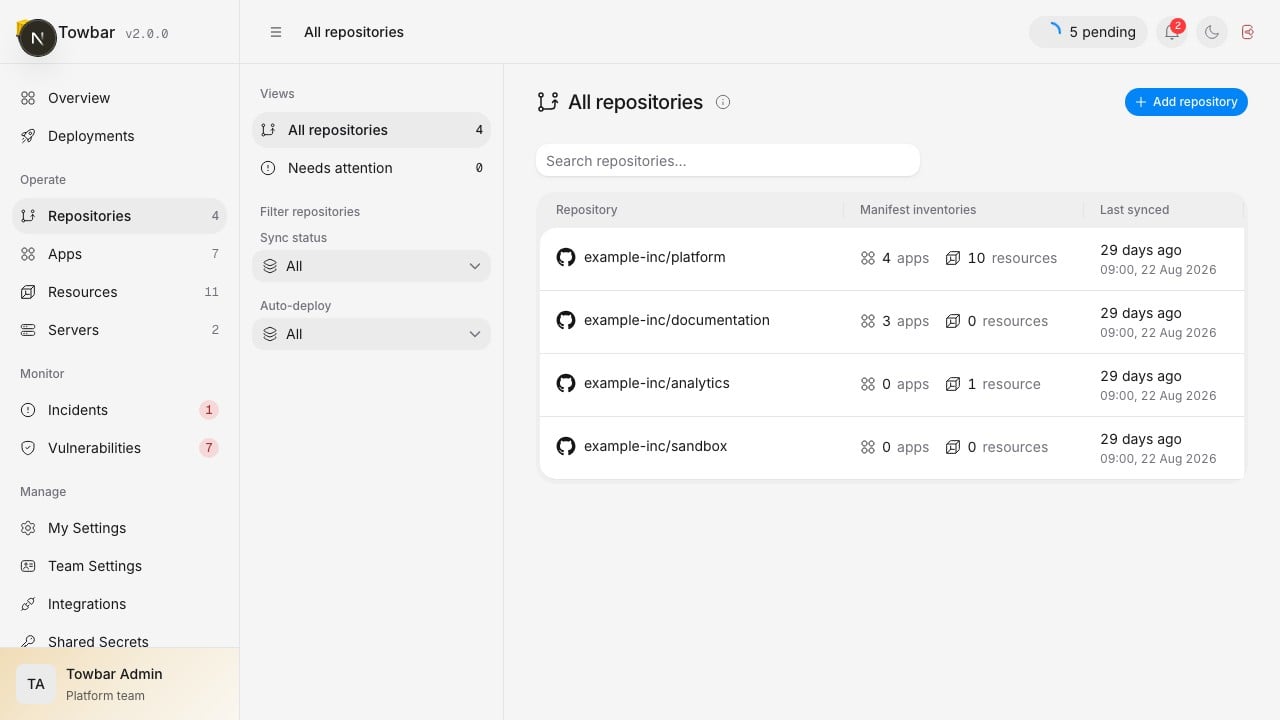
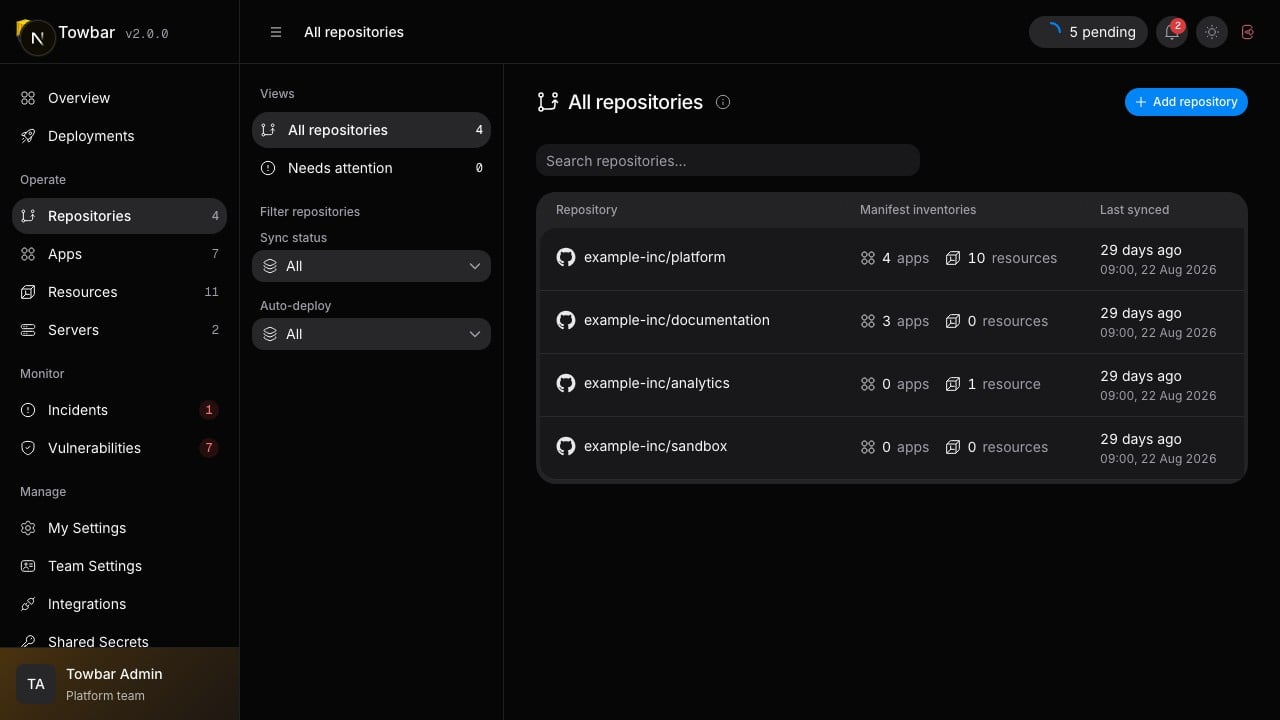
Repositories show their imported app and resource inventories and latest sync time.
Map environments to branches
Open Environments inside the Repository to see its branch mappings and sync status. Edit branch changes a mapping in Towbar; branch names do not belong intowbar.yml. Saving validates and syncs the selected branch without deploying.
If that branch cannot be read or its configuration is invalid, Towbar preserves
the last valid configuration and existing secret values.
PR previews follow the branch mapped to an environment with previews enabled.
For example, staging mapped to develop accepts eligible PRs targeting develop.


Map a branch to each named environment in the repository.
Change configuration
Edit the entity files in Git and merge into the affected environment’s mapped branch. A push webhook starts reconciliation; Sync now lets you request it explicitly. Review the sync’s commit and issues before expecting a deployment. Rename the displayname freely, but preserve each workload’s id. Removing an ID archives that workload. Reintroducing the same ID and kind restores its identity and history.
Control automatic deployment
Automatic deployment is opt-in. Use the manifest to select which workloads deploy and, for apps, which files count as inputs. The Repository’s automatic-deployment controls let you pause automation while investigating an incident or coordinating a maintenance window. Manual deployment is still a separate action. See Deployments and releases for the distinction between sync, queueing, execution, and promotion.Repository settings
Use Settings → Shared secrets for values shared by this Repository’s workloads, with separate named environments and isolated preview values. Use Settings → Notifications to choose destinations and event categories. SSH and Cloudflare credentials belong to the workspace server rather than the Repository. If a repository is missing or a webhook stops arriving, start with GitHub troubleshooting.Delete a repository
Deleting a repository removes its imported apps, resources, and operational history from Towbar. Running services and Docker data remain on their servers. After deletion, run Check server on each affected server and open Settings → Cleanup to review leftovers and remove them on demand. Volume deletion is a separate, permanent action. See server cleanup. Towbar suggests environments from the repository default branch when its configuration is available. You can add other environment names directly, even when the default branch has no manifest. Each selected environment is validated againsttowbar.yml on its mapped branch. Environment names must be unique within a Repository; there is no fixed environment-count limit. Server capacity and repository size still constrain what can run.